

Why Shopify Line Breaks Don’t Always Work
- Category
- Text Formatting
- Article Type
- standard
- Difficulty
- beginner
- Reading Time
- 8 minutes
- Last Updated
- 6月 30, 2026
- Prerequisites
- Basic familiarity with Shopify product descriptions, theme editor sections, or metafields.
Introduction
Shopify line breaks can be surprisingly frustrating.
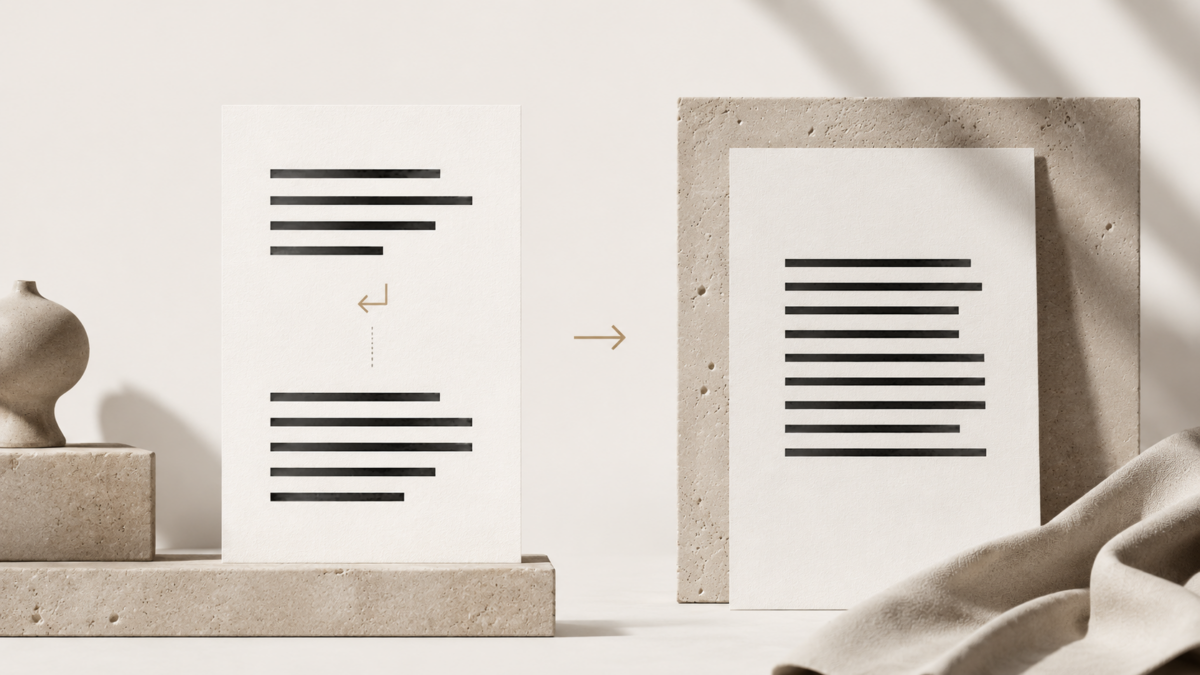
You press Enter in a product description, theme section, metafield, or custom text area. Everything looks correct while editing. But once you preview the storefront, the text appears as one long paragraph, extra spacing appears, or the line break works in one place but not another.
This is not always a mistake on your part. Shopify text can pass through several layers before it appears on the storefront: the admin editor, rich text formatting, Liquid output, theme CSS, metafields, section settings, and sometimes apps. Each layer can change how line breaks are stored or displayed.
That is why the same text can behave differently depending on where you enter it.
Quick Answer
Shopify line breaks usually do not work because the place where the text is entered does not automatically convert new lines into visible HTML line breaks. In HTML, pressing Enter in a text field is not always enough. The storefront usually needs paragraph tags, <br> tags, correct Liquid filters, or CSS that respects line breaks.
In simple terms: Shopify may store the line break, but your theme may not display it.
The best fix depends on where the problem happens. Product descriptions often need cleaner paragraph formatting. Metafields may need Liquid handling. Theme text fields may need a custom solution. For non-technical merchants who need controlled line breaks without editing code, an app-based approach can be safer.
You Will Learn
- Why line breaks disappear in Shopify
- Why product descriptions, metafields, and theme sections behave differently
- The difference between visual line breaks and HTML line breaks
- Common mistakes that create inconsistent spacing
- How to choose the safest fix for your store
Why Shopify Line Breaks Don’t Always Work
The main reason is that a line break in an editor is not always the same thing as a line break in HTML.
When you press Enter inside Shopify, the result depends on the field type. A rich text editor may create paragraph tags. A plain text field may save a hidden newline character. A metafield may store the text correctly but output it without converting new lines into visible breaks. A theme section may escape or simplify the text before displaying it.
This creates a common Shopify problem: the content exists, but the storefront does not visually respect it.
Shopify Is Not One Text System
One of the most important things to understand is that Shopify does not have only one way to handle text.
A product description, a theme heading, a metafield, a collection description, a page body, and a custom Liquid block can all treat text differently. Even if they look similar inside the admin, they may be stored and rendered in different ways.
This is why a line break may work in a product description but fail in a theme section. It is also why copying the same text from one place to another can produce different spacing.
Common Places Where Shopify Line Breaks Fail
Product Descriptions
Product descriptions usually use Shopify’s rich text editor. In many cases, pressing Enter creates a new paragraph, while Shift + Enter may create a softer line break depending on the editor behavior.
However, problems can still happen when text is copied from Google Docs, Microsoft Word, Notion, AI writing tools, or another website. These sources may bring hidden formatting, extra paragraph tags, or non-standard spacing.
For example, a description may look clean in the editor but create large gaps on the storefront because the theme applies margin to every paragraph.
Theme Editor Text Fields
Theme sections often include fields such as heading, subheading, button label, announcement text, or custom message.
These fields are commonly designed for short text, not advanced formatting. As a result, pressing Enter may not create a visible line break on the storefront.
This is especially common in hero banners, announcement bars, image-with-text sections, and promotional blocks.
Metafields
Metafields are powerful, but they can confuse merchants because the admin may allow multiple lines while the theme output does not display them as separate lines.
Wash cold
Do not bleach
Hang dry
Wash cold Do not bleach Hang dry
The text was not necessarily lost. The theme simply did not convert the stored new lines into visible HTML line breaks.
Collection Descriptions and Pages
Collection descriptions and standard pages usually support rich text, but they can still behave inconsistently depending on the theme’s CSS.
If paragraph margins are too large, the text may look overly spaced. If CSS resets paragraph spacing too aggressively, the content may look compressed.
Custom Liquid or Code-Edited Themes
When developers output text through Liquid, the chosen filter matters. Some filters preserve formatting, some escape HTML, and some remove or convert line breaks.
This is where Shopify line break issues become more technical. The problem may not be in the content itself, but in the way the theme renders it.
The Technical Reason: New Lines Are Not Always HTML
In plain text, a line break can be stored as an invisible newline character. In HTML, browsers do not automatically display every newline character as a visible break.
For a browser to show a line break, the text usually needs one of the following:
- A paragraph element
- A
<br>tag - CSS that respects whitespace
- A Liquid filter that converts newlines into HTML breaks
This is the root of many Shopify formatting problems.
Visual Editing vs. Storefront Rendering
The Shopify admin is where you enter content. The storefront is where your theme renders that content.
Those are not the same environment.
The editor may show your text over multiple lines because it understands the input area. But the storefront depends on HTML, Liquid, and CSS. If the theme outputs the text as a single inline string, your carefully placed line breaks may disappear.
Why Some Fixes Work in One Theme but Not Another
Shopify themes are not identical. Each theme decides how to output section text, product content, metafields, and custom blocks.
One theme may automatically apply rich text formatting. Another theme may output plain text. A custom-built theme may use Liquid filters that change whitespace. A heavily customized theme may have CSS that overrides default paragraph spacing.
This is why advice like “just press Enter” or “just add <br>” is not always reliable.
The correct fix depends on the text source and the theme output.
Best Ways to Fix Shopify Line Break Problems
1. Use Proper Paragraphs in Product Descriptions
For product descriptions, the best first step is to use clean paragraph formatting.
Instead of forcing every visual break manually, structure your description with short paragraphs, bullet points, and clear sections.
This is usually better for readability and mobile shopping.
A good product description should not be one large block of text. It should guide the customer through the key information quickly.
2. Clean Up Copied Text Before Pasting
Many spacing issues come from copied content.
If you copy from Google Docs, Word, Notion, or another website, the text may include hidden formatting. This can create strange spacing, broken styles, or inconsistent paragraphs.
- Write the content in your preferred writing tool.
- Paste it into a plain text editor first.
- Copy the cleaned text into Shopify.
- Apply formatting inside Shopify.
- Preview on desktop and mobile.
This small workflow prevents many layout issues. It is not glamorous, but neither is debugging a mysterious invisible paragraph at 11:48 p.m.
3. Use Bullet Points Instead of Manual Line Breaks
If the text is a list, use a real list.
For example, product benefits, ingredients, care instructions, shipping notes, and feature summaries often work better as bullet points than manual line breaks.
Bullet points are easier to scan, more consistent across devices, and usually more accessible than forced line breaks.
4. Ask a Developer to Adjust Liquid Output
If line breaks are stored correctly but not displayed, the theme may need a Liquid adjustment.
For example, some text fields may need a filter that converts newlines into HTML line breaks. This is commonly relevant for plain text metafields or custom theme settings.
This approach can be clean, but it should be handled carefully. Applying line break conversion in the wrong place can create unwanted spacing or insert breaks inside content that already contains HTML.
5. Use CSS Carefully
CSS can make browsers respect line breaks in plain text, but it should not be used blindly across the entire store.
For example, applying whitespace rules globally may affect buttons, headings, product cards, navigation, or other layout elements.
CSS fixes are best applied to a specific text area, not the whole theme.
6. Use an App When Merchants Need Control Without Code
In many real Shopify stores, the person editing content is not the developer.
A developer may understand Liquid, HTML, and CSS, but the merchant simply wants a headline, banner, product message, or short promotional text to break at the right place.
This is where an app-based workflow can help.
For example, Smart Line Break allows merchants to control line breaks using simple shortcodes without editing theme code. This can be useful for headings, promotional text, and theme areas where Shopify’s default editor does not provide enough formatting control.
This is not necessary for every store. But when line break control becomes a repeated operational issue, a lightweight app can be safer than asking non-technical users to edit HTML.
Common Mistakes to Avoid
Mistake 1: Adding Too Many <br> Tags
Adding <br> tags can work, but it can also make content harder to maintain.
If a product description is full of manual breaks, future editing becomes messy. It may also create inconsistent spacing on mobile.
Use manual breaks only when they serve a clear purpose.
Mistake 2: Treating Headings Like Paragraphs
A common design mistake is using line breaks to make headings look balanced.
Natural skincare
for sensitive skin
That can be reasonable in a hero banner. But if the same heading appears on multiple screen sizes, the break may look good on desktop and awkward on mobile.
Line breaks in headings should be intentional and responsive-aware.
Mistake 3: Using Spaces to Create Line Breaks
Spaces are not line breaks.
Adding multiple spaces to push text onto the next line is unreliable. It may fail on different screen widths, browsers, languages, or devices.
This is especially risky in Shopify because responsive layouts can change text width dramatically.
Mistake 4: Fixing Everything with Global CSS
Global CSS fixes can create new problems.
A rule that helps one product description may damage another section. A whitespace rule that improves a metafield may break button labels or navigation text.
Always target the smallest possible area.
Mistake 5: Ignoring Mobile Preview
Line breaks are visual decisions. A break that looks elegant on desktop may look strange on mobile.
Before publishing important text, preview it on both desktop and mobile. This is especially important for hero headlines, announcement bars, and product page summaries.
Best Practices for Shopify Text Formatting
Use Line Breaks for Meaning, Not Decoration
A line break should help the customer understand the text.
Good reasons to use a line break include separating ideas, improving scanability, making a short message easier to read, or controlling a high-impact visual phrase.
Weak reasons include forcing text to look like a design mockup on only one screen size.
Keep Product Descriptions Structured
For product descriptions, structure usually matters more than line breaks.
Use short paragraphs, bullet points, benefit sections, material details, sizing information, and care instructions. This improves readability and reduces the need for manual formatting.
Create a Storewide Formatting Rule
One original workflow we recommend for Shopify teams is creating a simple storewide text formatting rule.
- Product descriptions use short paragraphs and bullet points.
- Hero headings may use controlled line breaks only when tested on mobile.
- Metafield lists should be rendered as lists or converted properly by the theme.
- Announcement bars should stay short enough to avoid forced breaks.
- HTML should only be edited by approved team members.
This prevents each staff member from inventing their own formatting system.
Think About Translation
Line breaks can become complicated when a store uses multiple languages.
A phrase that fits neatly on two lines in English may become much longer in German, French, Japanese, Indonesian, or Dutch. If the break is hardcoded in the wrong place, translated text may look unnatural.
For multilingual stores, avoid overly rigid line breaks unless you can control them per language.
Think About Long-Term Maintenance
A quick fix today can become a maintenance problem later.
Before choosing a solution, ask:
- Who will edit this text in the future?
- Will this content be translated?
- Will the theme be updated?
- Does this solution require code knowledge?
- Will the formatting still work on mobile?
This decision framework helps avoid fragile formatting.
A Simple Decision Framework
| Problem | Likely Cause | Recommended Fix |
|---|---|---|
| Line breaks disappear in a metafield | The theme outputs plain text without converting newlines | Adjust Liquid output or use a controlled app-based solution |
| Product description has too much spacing | Extra paragraph tags or theme CSS margins | Clean pasted text and review paragraph styling |
| Hero heading will not break where desired | Theme heading field does not support manual formatting | Use a theme customization or shortcode-based solution |
| Text looks good on desktop but bad on mobile | Line breaks were designed for one screen size | Test responsive layouts and avoid rigid breaks |
| Copied content behaves strangely | Hidden formatting from another editor | Paste as plain text and reformat inside Shopify |
When You Should Not Force Line Breaks
Line breaks are useful, but they are not always the best solution.
You should avoid forced line breaks when the text is long, likely to be translated, used in many layouts, or displayed in narrow containers. In these cases, natural wrapping is usually safer.
For example, a product title should usually wrap naturally. A long announcement bar should be rewritten shorter instead of forced into multiple lines. A product description should use real structure rather than dozens of manual breaks.
The best formatting often comes from better content, not more formatting.
Recommended Workflow Before Publishing
- Identify where the text is entered: product description, theme section, metafield, page, or custom Liquid.
- Check whether the field supports rich text or plain text only.
- Preview the storefront, not only the admin editor.
- Test desktop and mobile views.
- Remove hidden formatting from copied text.
- Use paragraphs or lists where appropriate.
- Use Liquid, CSS, or an app only when the default editor is not enough.
This workflow keeps the fix practical and prevents over-engineering.
Key Takeaways
- Shopify line breaks often fail because stored newlines are not automatically displayed as HTML breaks.
- Product descriptions, metafields, theme sections, and custom Liquid areas can all handle text differently.
- Copied content from external writing tools can bring hidden formatting that causes spacing issues.
- Manual
<br>tags can work, but they are not always the most maintainable solution. - For repeated non-code formatting needs, a lightweight app such as Smart Line Break can help merchants control line breaks more safely.
Frequently Asked Questions
Why do my Shopify line breaks disappear?
Your line breaks may disappear because the theme is outputting the text as plain HTML without converting newline characters into visible line breaks. The text may still contain the break internally, but the browser does not display it unless the theme handles it correctly.
Can I use <br> in Shopify?
Yes, in some areas you can use <br> to create a line break. However, it is not always the best long-term solution. Too many manual HTML breaks can make content harder to edit and may create layout issues on mobile.
Why does my product description spacing look too large?
This often happens when the description contains multiple paragraph tags or when the theme applies large margins to paragraphs. It can also happen when content is copied from another editor with hidden formatting.
Do metafields support line breaks?
Metafields can store text with line breaks depending on the field type, but your theme must output those line breaks correctly. If the theme does not convert or respect them, they may not appear on the storefront.
Is CSS enough to fix Shopify line breaks?
CSS can help in specific cases, but it should be used carefully. A global CSS fix may affect other parts of the store. It is usually better to target only the specific text area that needs line break behavior.
What is the safest solution for non-technical merchants?
For simple product descriptions, use clean paragraphs and bullet points. For repeated line break control in theme sections or promotional text, an app-based solution may be safer than editing Liquid or HTML manually.
Recommended Next Reading
When Smart Line Break Helps
If you only need basic formatting, Shopify’s built-in editor may be enough. But if you regularly need controlled line breaks in headings, banners, product messages, or theme text areas without editing code, Smart Line Break can make that workflow easier.
It lets merchants add intentional line breaks with simple shortcodes, while keeping theme files untouched. That makes it a practical option for stores where design control matters but code editing is not ideal.